
Appearance
Sign in and access
Anyone your organization has added can sign in to the Contents Capture admin console, and what you see after signing in depends entirely on your role.
Who can access
You can sign in if an admin in your organization has added you on the Users page. You do not need a separate password or account setup: sign-in uses a one-time code sent to your email or phone, so there is nothing to remember or reset.
Your role decides what you see. Org admins see everything including Mission Control, webhooks, and integrations. Members and observers see the console but with most management features unavailable. See Roles and permissions for the full breakdown.
Signing in
- Go to https://app.contentscapture.com.
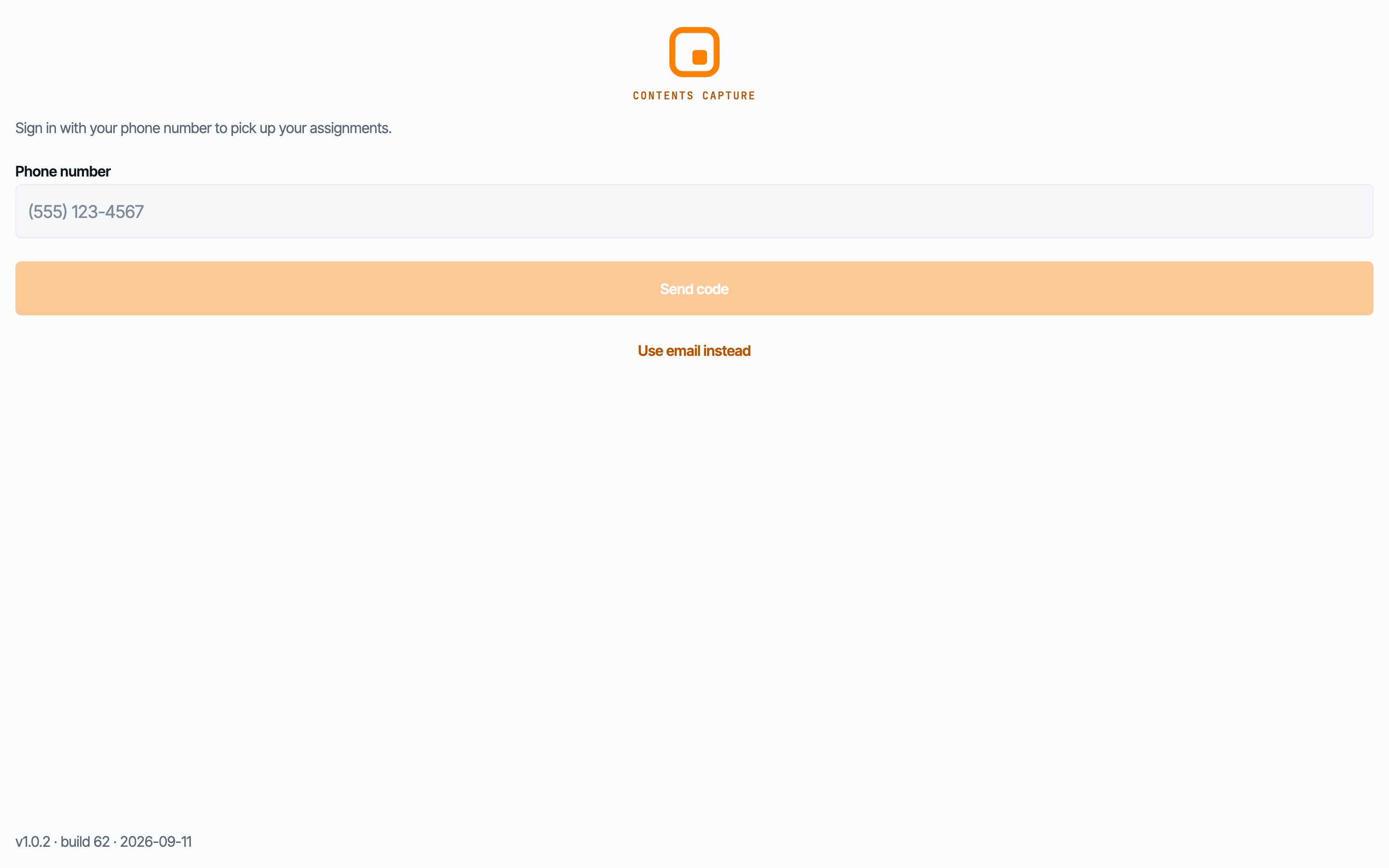
- Enter your email address or phone number, the same one your admin used when adding you.
- Check your inbox or text messages for the one-time code.
- Enter the code. You are signed in.
No password to lose
Because sign-in uses a one-time code every time, there is no password to forget, share, or reset. If a code does not arrive, check spam folders or ask your admin to confirm the email or phone number on file.
Switching organizations
If you belong to more than one organization, use the organization switcher in the top bar, next to the Contents Capture brand mark. Click it to see every org you belong to and switch between them. Your role can differ per org: you might be an org admin in one and a member in another.
The "Database" pill in the footer
The small Database pill in the footer shows which tenant database your session reads. It exists as a support diagnostic. You can safely ignore it in day-to-day work; if you ever contact support, they may ask what it says.
Console versus the mobile app
The same account signs you into both the admin console and the iOS field app, but they serve different jobs:
- Admin console (app.contentscapture.com) is where configuration happens: organizations, users, profiles, assignments, workflows, and review.
- iOS app is where field staff capture media and submit hand-offs. Field staff should use the Field Guide for app training.
Finding your way around
The left navigation is grouped into five sections:
| Group | Contains |
|---|---|
| Field | Mission Control, Assignments, Crews |
| People | Users, Roles |
| Content | Submissions |
| Automation | Workflows, Runs, Templates |
| System | Webhooks, Integrations, Audit log, Settings |
Click the rail toggle to collapse the navigation into an icon-only rail when you need more screen space. The console remembers your preference. A Documentation link in the nav footer brings you back to this guide.